

Create your Link in Bio on pqno.app
Gather your links on a page with text, images, videos and collections. Pick a template, arrange the blocks and publish at an address of your own.
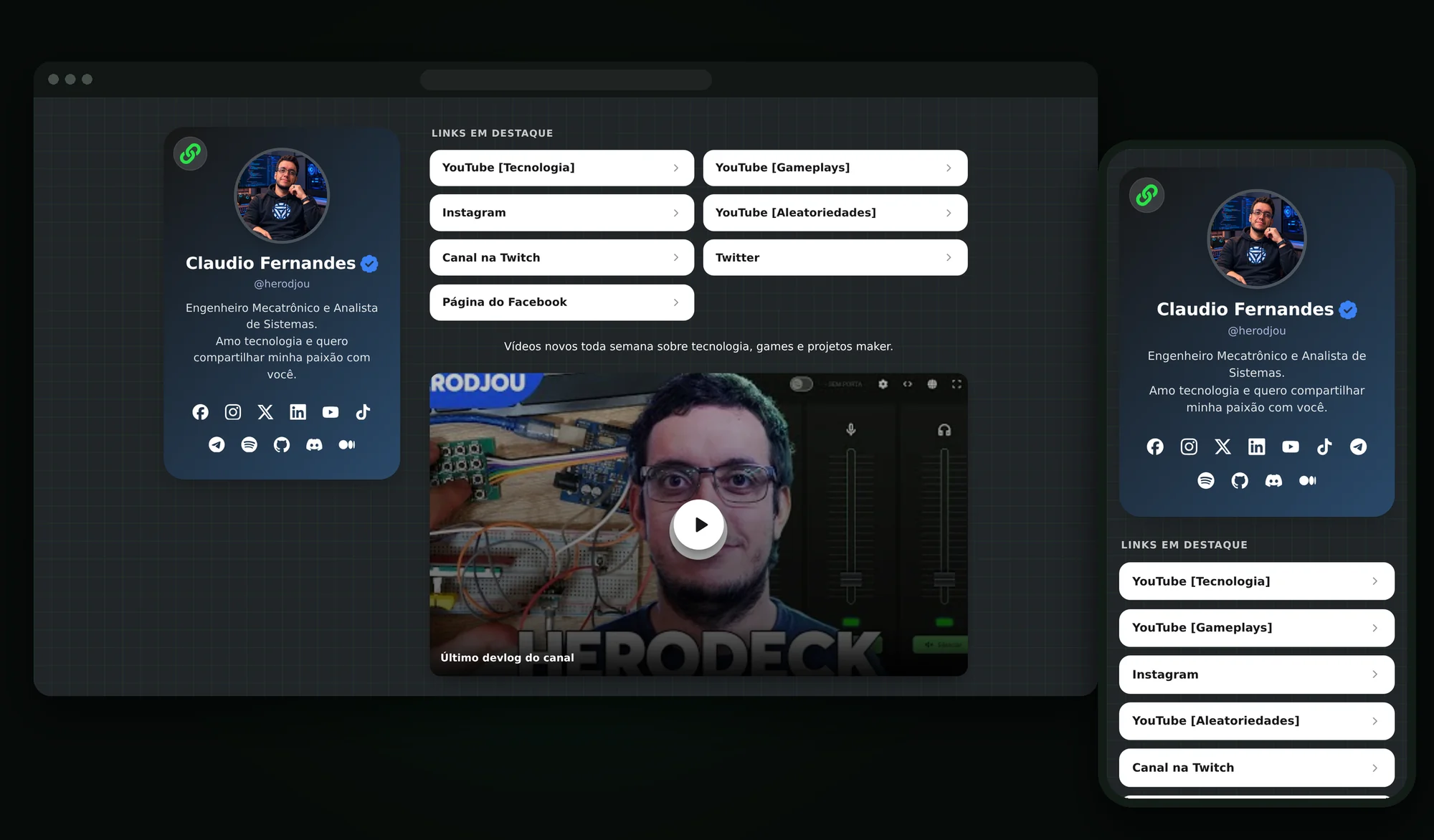
Link in Bio blocks
In the editor, you add and rearrange these types of content, without touching code.
Links
Add any individual link, anywhere on the page.
Collections
Group links into a section with its own display rule.
Text
Add headings, information and context between your content.
Image
Add visual content to the page.
Video
Use YouTube or Vimeo videos. The player only loads when someone decides to watch.
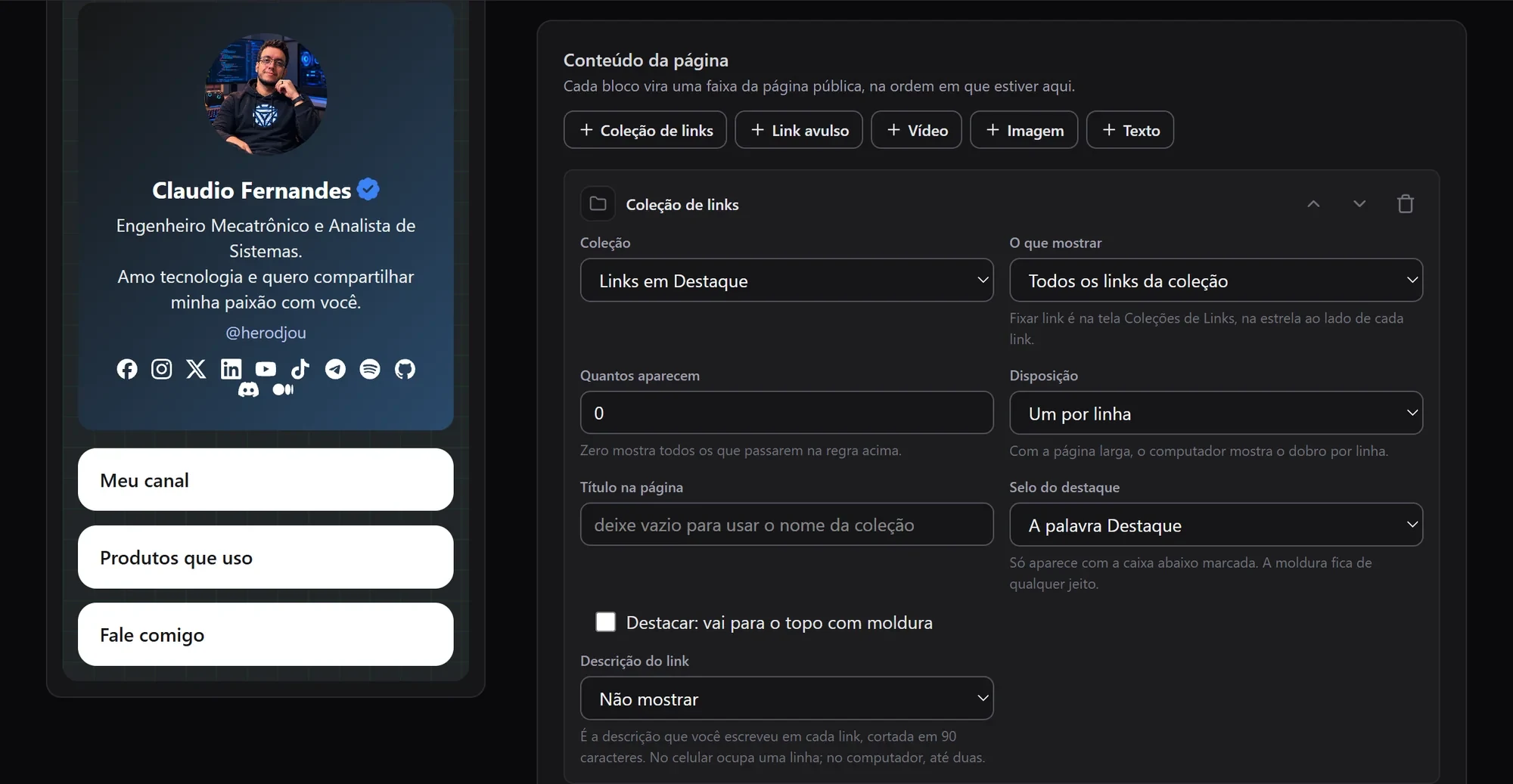
Link collections
Create groups for social media, projects, products, content or any other topic. Each collection can show all its links, only the pinned ones or only the most recent. The same link can be in more than one collection, with a different highlight in each.
- All
- Pinned only
- Most recent
Other options for each collection
- Maximum number of links
- Order
- List or grid
- Highlight
- Title
- Whether the description shows
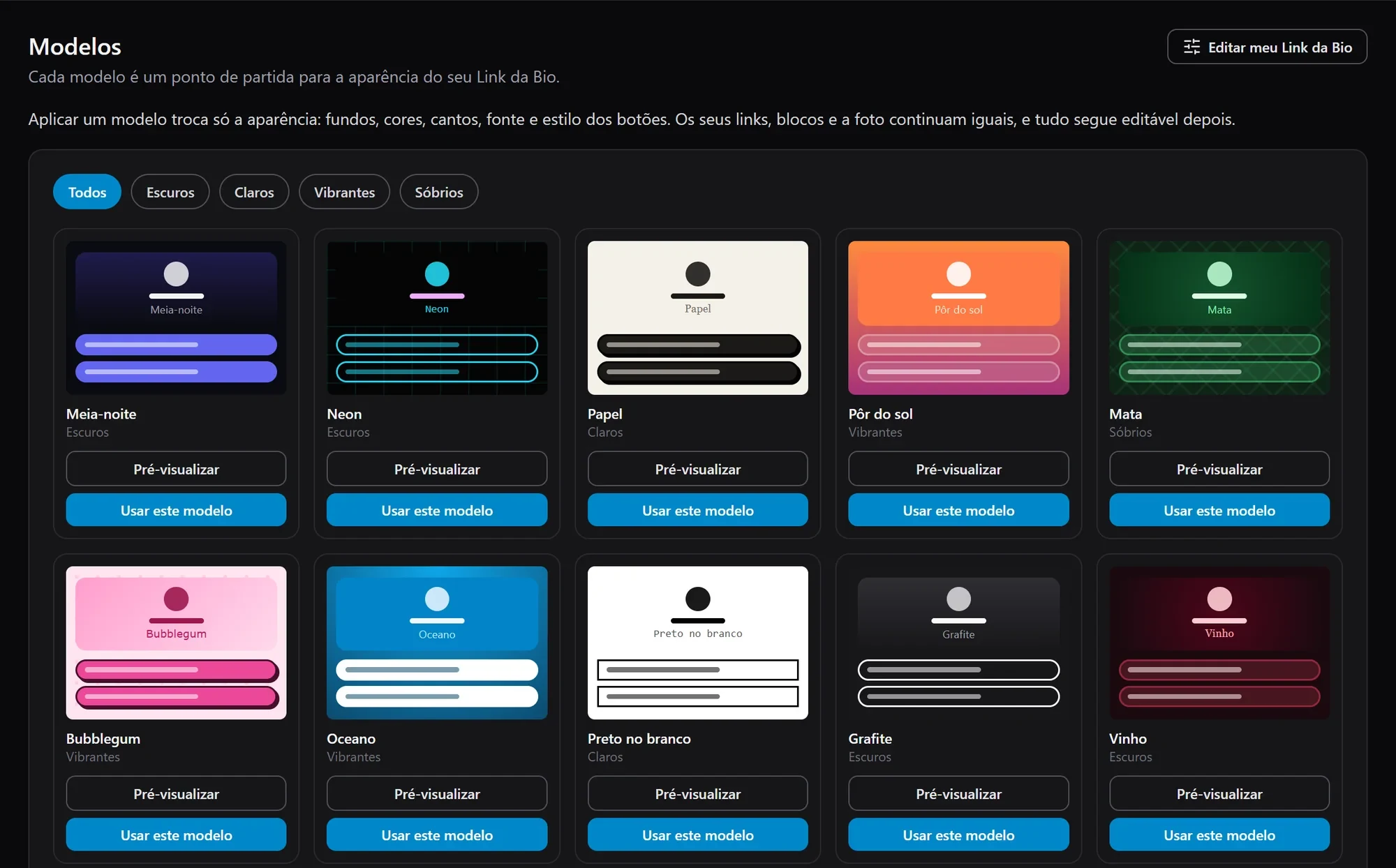
20 Link in Bio templates
There are 20 visual templates in four categories. Pick a ready-made look and use it as a starting point: each template sets the background, header, colors, typography, button style, corners and textures. Then adjust whatever you want without losing the page content.
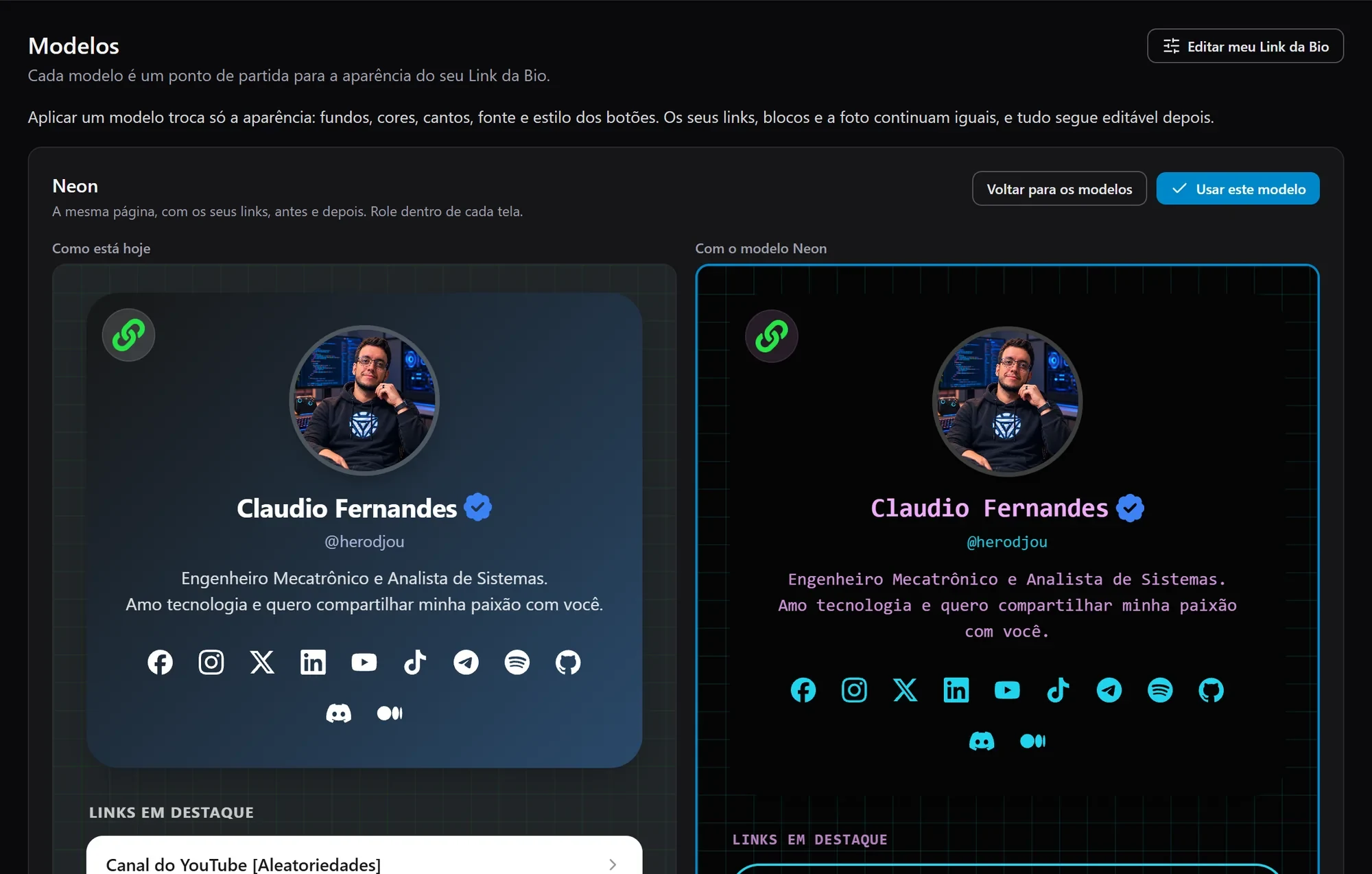
Template preview before you apply
The preview puts your current page and the chosen template side by side, using the same links, images and content from your profile. It is built by the same code as the published page, so what shows in the preview is what goes live.
Customization options
Colors, backgrounds, gradients, textures, typography, text color, page layout and profile appearance can be adjusted one by one.
Five button styles
- Filled
- Outline
- Soft
- Hard shadow
- Glass
Three corner shapes
- Square
- Rounded
- Pill
Layout for phone and desktop
On the phone, the content stays in one column. On larger screens, you choose between keeping the page centered or using a wide layout, with the profile fixed on one side and the links in two columns.
Videos that load only after the click
In video blocks, the page first loads just the thumbnail. The player comes in after the click, and YouTube is served from youtube-nocookie.com. Visitors who are just passing through do not download the video.
pqno.app branding on the page
The Link in Bio carries the pqno.app icon in the top corner and a discreet mark in the footer. On the Business plan, you can remove both from your page.