

Link API for marketing: 7 workflows to automate your campaigns
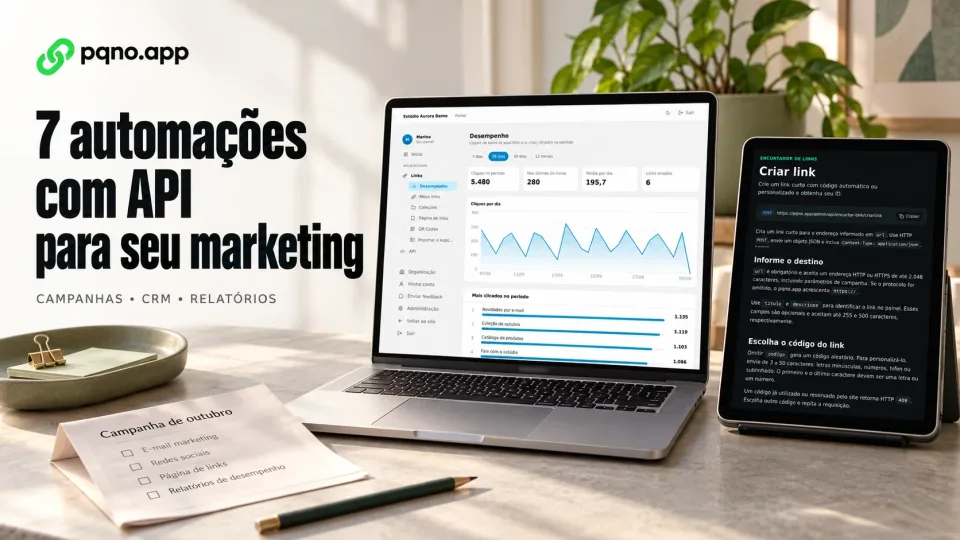
Your campaign is ready. Now someone needs to add UTM parameters, shorten each URL, copy the result into the CRM and check that the report can distinguish the channels. When this happens every week, links become another manual step between planning and publishing.
A link API for marketing automation lets you include these tasks in the workflows of systems you already use. Your integration sends the destination, receives a short URL and stores it alongside the campaign. It can later retrieve click counts and update destinations programmatically.
The opportunity is operational: publish with fewer repetitive tasks, maintain consistent tracking and connect distribution to reporting. This guide covers seven practical applications and a starting plan for the pqno.app API.
What can a link API do for marketing?
An API allows two systems to exchange information. With a link shortener, your CRM, automation tool or custom application sends a request and receives link data without someone creating the link in the dashboard.
Consider a newsletter: a workflow can get the offer page, add campaign parameters, create a short link and return it to the email template. Each step needs to be configured in the integration; the link API handles creating and managing the URLs.
For a marketing team, this creates four opportunities:
- Standardize: titles, codes and parameters follow the same convention for every campaign.
- Reduce repetitive work: link creation happens inside the publishing workflow.
- Organize: your system associates the link ID with a channel, creative or record.
- Consolidate: the integration retrieves clicks for reports that combine several data sources.
An API enables these processes. The outcome depends on configuration, workload and campaign quality. A short link does not improve an offer or automatically increase conversions.
7 marketing workflows you can automate with a link API
1. Create campaign links with consistent UTMs
When everyone writes channel names differently, reports can split data that should belong together. An integration can apply a naming convention before sending a destination URL to the shortener.
For example, your workflow receives the campaign october-collection, the source newsletter and the creative main-button. It builds this destination:
https://example.com/collection?utm_source=newsletter&utm_medium=email&utm_campaign=october-collection&utm_content=main-buttonThe API receives the full URL and returns the short address for distribution. The parameters remain in the destination; the shortener does not generate them automatically. Google Analytics guidance on campaign URLs recommends using utm_source, utm_medium and utm_campaign and keeping names consistent. Data collection requires Analytics to be configured on the destination website.
Use it for: recurring campaigns that need organized source, channel and campaign names in reports.
2. Connect links to CRM stages
A change in an opportunity's stage can trigger a workflow that prepares a presentation, catalog or booking link. Your integration creates the address and saves its ID and short URL in the CRM record so the sales team can find the right material.
The CRM or another connected service still handles sending it to the contact. The pqno.app API does not send emails or messages itself. Define when to reuse a link, too: the same presentation may serve several opportunities without needing a new URL for every record update.
Use it for: workflows where salespeople copy links manually and the team needs to associate each resource with a customer journey stage.
3. Prepare links for newsletters and email sequences
A newsletter can have a main button, banner and text link pointing to the same offer. Creating one short link for each placement helps compare visits to each address. In the destination URL, utm_content can identify the creative.
Prepare the links before sending and store them with the newsletter edition. If sending needs to resume, reuse the addresses already created. This avoids generating duplicate URLs on every retry and consuming requests unnecessarily.
Use it for: frequent newsletters and sequences with several resources. Interpret the data carefully: automated email security scanners can visit links as well.
4. Organize partner and influencer campaigns
Your system can generate one address for each campaign partner and store who received which link. One destination page can then have separate distribution URLs, with titles and UTMs set by your integration.
This lets you compare clicks for each code over the same period. Consider reach, spend and conversions measured at the destination as well. If someone shares a partner's link elsewhere, those additional visits will still be associated with that code.
Use it for: campaigns with several distribution sources. A link per partner organizes measurement; click counts alone do not establish sales or calculate commissions.
5. Generate QR codes for printed materials
After creating a short link, your integration can request a QR code image for a catalog, package or event material production workflow. The pqno.app API generates PNG or SVG images; this operation does not save a QR code in the dashboard.
If the QR code points to the short link, you can update only the destination URL while keeping the link's code unchanged. The address encoded in the printed material then stays the same. Changing the link code changes the address and may break the printed QR code.
Use it for: materials whose destination needs updating after printing. Test the final file on phones before the print run. A visit is counted when someone opens the address, not merely when they point a camera at it.
6. Feed link clicks into campaign reports
A scheduled workflow can retrieve campaign link statistics and store them in a spreadsheet, database or BI tool. Your integration assembles the report and combines these numbers with spend, orders or form submissions from other systems.
Store each link's ID when it is created. Choose a retrieval frequency that fits the decision: daily reporting may be enough for a weekly campaign without checking every link every minute.
Use it for: teams that currently combine numbers from several dashboards manually. A click is a visit to the redirect without visitor deduplication: it is not a unique person, lead or purchase. See how to interpret link analytics.
7. Integrate links with product and content publishing
A CMS, catalog or custom application can request a short URL when a product or piece of content is published. It stores the returned address with that record, ready for use by connected channels.
If the destination changes, the integration can update the existing link's URL within the account's permissions. Your workflow must define how to detect the change, when to update the link and how to validate the new page.
Use it for: catalog and editorial operations where creating, storing and updating links is routine. The API provides the operations; synchronization with the source system needs to be implemented.
Practical example: four channels and two creatives
Imagine a fictional October Collection campaign distributed through a newsletter, WhatsApp, Instagram and a partner. Each channel has two creatives. If you want one link for each combination, you will need eight addresses.
The workflow could work like this:
- Receive the approved campaign: destination page, campaign identifier, channels and creatives.
- Build the UTMs: apply the naming convention to each combination.
- Create eight links: send one request per address, including its title and complete destination.
- Store the results: save
dados.idanddados.url_curtaalongside the campaign and creative. - Distribute the URLs: pass the links to systems responsible for publishing or sending.
- Retrieve results: request clicks by date range and compare them with conversions measured at the destination.
This is an integration design, not a ready-made campaign sending feature in pqno.app. For the creation request and response, see the technical guide to the link shortener API.
How to start with n8n or a custom application
You can use a tool that makes HTTP requests or build an integration in your backend. In n8n, the HTTP Request node lets you configure the method, URL, authentication and JSON body to call a REST API.
Start by creating one link:
- Choose a small campaign and define how to build the destination.
- Generate a token in the dashboard's API area and store it in your server's or automation tool's credentials.
- Configure a
POSTrequest tohttps://pqno.app/admin/api/encurtar-link/criarlinkwith Bearer authentication and a JSON body. - Send
urlandtitulo. Thecodigofield is optional; without it, the link code is generated automatically. - Check the HTTP 201 response, save the ID and short URL and test the redirect.
- Before expanding the workflow, handle failures, retries and codes already in use.
Keep the credential out of public JavaScript. After a failure or timeout, check whether the link was created before repeating the operation. The link creation reference details fields and responses.
What to evaluate before automating
The pqno.app API is available on Pro and Business and offers eight endpoints: create, get, list, update and delete links, retrieve statistics, get a summary and generate QR code images.
Default quotas are 1,000 requests per day on Pro and 10,000 on Business, with an additional per-minute limit. Queries also consume quota, so plan creation and reporting together. On Business, the organization shares the daily quota.
A personal token works with its issuer's links. On Business, an administrator can issue a company token to manage the organization's links. QR code generation through link_id remains limited to the issuer; for another company link, send its short URL in conteudo.
Read the guides to authentication, usage limits and responses and errors before putting the integration into production. They help you choose the right scope and handle responses such as 409 and 429.
How to measure whether the automation was worthwhile
Compare the same task before and after integration. Record the time spent preparing links, the number of URLs requiring correction, manual interventions and whether complete data reached the report.
Evaluate campaign performance separately: shortener clicks, website sessions and conversions in the destination system measure different stages. These numbers can differ because of repeated visits, automation, measurement blocking or abandonment before the page loads.
Start with the task that repeats most often or needs the most corrections. Validate one campaign, refine the workflow and expand once the team can operate it and identify failures.
Frequently asked questions about link APIs for marketing
Do I need to code to use a link API?
You can build an integration in an automation tool with HTTP requests, such as n8n. You still need to configure authentication, request data, response storage and error handling. A custom backend is another option.
Does a short link replace UTM parameters?
No. The short link redirects to a destination URL that can contain UTMs. The shortener records clicks, while UTM attribution depends on measurement at the destination.
Does the API send campaigns or guarantee more conversions?
No. The pqno.app API manages links, retrieves data and generates QR code images. Sending, publishing and conversion measurement depend on connected systems. Measure the operational benefit in your own workflow.
Turn a repetitive task into a campaign workflow
Pick a concrete task: preparing links for the next newsletter, organizing partner URLs or feeding a daily report. Set a naming convention, make the first request and validate the journey from the short address to the destination page.
With that first workflow running, you have a foundation for expanding automation while keeping control over your links and data.
Start an integration with the pqno.app API
Compare Pro and Business for your operation.
Reviewed on October 4, 2026 against current product features. Campaign examples and cover metrics are simulated.