

How to create a free QR code for a link, WhatsApp, Wi-Fi or a menu
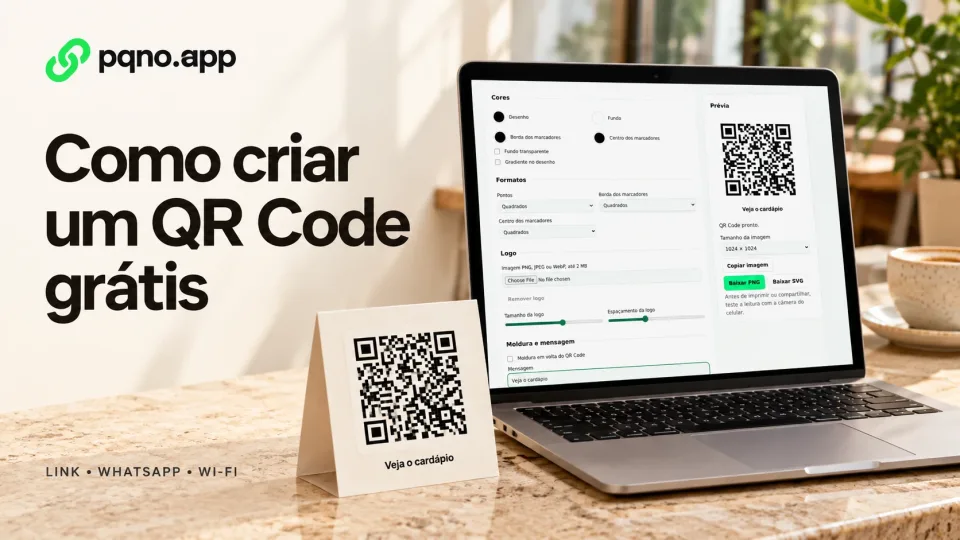
A QR code stores content a phone can interpret. After pointing the camera and confirming the action, a person can open a link, start a WhatsApp chat or join a Wi-Fi network, depending on the content type and device support.
You can create yours with the pqno.app free QR code generator, with no sign-up. Pick the content type, adjust colors, logo and frame, and download it as PNG or SVG.
How to create a QR code for a link
- open the QR code generator;
- under Content type, choose Link;
- paste the full address, starting with
https://; - adjust colors, dot shape, logo and frame;
- point your phone camera at the preview and check that the address opens;
- download it as PNG or SVG.
The longer the address, the more squares the QR code needs. A shorter address can reduce the pattern’s density. Scanning still depends on size, contrast, margins and print quality.
Long address:
https://mystore.com/products/t-shirts/cotton?utm_source=packaging&utm_campaign=october

Short link:
https://pqno.app/tshirt
See also: how to create a custom link.
How to create a WhatsApp QR code
A WhatsApp QR code opens a chat with your number, and the message can already be written.
- choose WhatsApp under Content type;
- type the number with the country code and area code, digits only:
15551234567; - under Prefilled message, if you want, write the text the person will send, such as "Hi, I'd like to place an order";
- test it with a phone other than the one with that number.
The generator builds the WhatsApp address with the number and the message:
https://wa.me/15551234567?text=Hi%2C%20I'd%20like%20to%20place%20an%20orderIt works well at the counter, on delivery packaging, on business cards and in shop windows.
How to create a Wi-Fi QR code
With a Wi-Fi QR code, visitors join the network without asking for the password. On devices that support this content, the reader offers to connect; confirm the action and test on visitors’ devices.
- choose Wi-Fi under Content type;
- type the network name exactly as it shows on the phone, with the same capital letters;
- under Security, choose "WPA or WPA2", the most common; WEP is for old routers, and "No password" is for open networks;
- type the password;
- check "Hidden network" only if the network does not show up in the phone's network list.
Two things to keep in mind:
- Whoever has the QR code has the password. For customers and guests, use a guest network, separate from the office network.
- If you change the password, create a new QR code. The password is stored in the pattern, so the old QR code stops working.
How to make a QR code for a restaurant menu
A menu QR code is a link QR code. What changes is where it points:
- a PDF of the menu published online;
- the menu page on your website or delivery app;
- a Link in Bio page with the menu, the WhatsApp number for orders and the restaurant's Instagram.
If prices change often, point it to an address you can change later. On pqno.app, a QR code with scan tracking points to a short link, and you change the destination without reprinting the table tents.
For a table tent, try about 3 cm (1.2 in) per side as a starting point and test at the actual distance. No size guarantees scanning in every condition. A message on the frame, such as "Point your camera to see the menu", tells people what happens before they scan. The Wi-Fi QR code can go on the same table tent.
How to add a logo to a QR code
- use the logo as a PNG with a transparent background, or a square version of it;
- start with a small logo that does not cover the three corner markers;
- leave some room around the logo with Logo padding;
- test the scan after adding the logo.
The generator uses level H error correction to increase tolerance to damage. This does not guarantee a safe logo width: position, content and module coverage also matter. Reduce the logo if any device struggles to scan.
Colors and shapes that help scanning
- A dark pattern on a light background. The reverse, a light pattern on a dark background, is not read by some scanners.
- High contrast. Light gray on white or green on blue get in the way. The generator warns you when the contrast is low.
- Rounded dots and other corner marker shapes need to be tested on the devices that will scan the code.
- Gradients: prefer dark colors on a light background and test the combination you choose.
QR code size for printing
Size depends on the module count, paper, print quality, camera and scanning distance. Make a proof at the final size; about 3 cm (1.2 in) per side can be a starting point for a table tent. Posters and windows need tests at their longer viewing distances.
Prefer SVG when your print supplier accepts it because the pattern is vector-based. PNG works for screens and documents and can be exported at up to 2048 pixels. Enlarging a small PNG after downloading does not restore detail.
Keep a clear margin at least four modules wide on each side, without text or images touching the pattern. A module is one square of the QR grid. DENSO WAVE’s technical guidance explains this quiet zone.
Caption, font and size
Enter the image caption under Frame and message. When a caption is present, you can choose Inter, Arial, Georgia, Courier New, Roboto, Montserrat or Poppins and set a size from 24 to 96, with 56 as the default. Long captions shrink to fit one line; check readability at the final print size.
When to use a dynamic QR code
The QR code you download from the generator is static: the content is stored in the pattern. The image itself has no expiry date, but its destination must remain accessible. If the content is a pqno.app short URL, opening it still depends on that redirect. Content such as Wi-Fi credentials stays in the pattern and cannot be edited after printing.
A dynamic QR code points to a short link, which redirects to the destination. With it, you can:
- change the destination after printing;
- track short-link visits by day when someone opens the address after scanning;
- compare QR codes in different places, such as the one on the packaging and the one on the poster.
Static works well for Wi-Fi, business cards and any destination that does not change. Dynamic is worth it for menus, packaging with large print runs and campaigns with printed material. On pqno.app, scan tracking is on the Pro and Business plans, for link and WhatsApp QR codes.
See also: how to measure clicks on short links.
How to test a QR code before printing
- scan it with at least two phones, ideally an iPhone and an Android;
- print a test sheet at the real size and scan it from the distance people will scan it;
- test it where the QR code will be placed, under that lighting;
- open the destination on mobile data, not just the office Wi-Fi;
- check that the destination page works well on a phone.
Create your free QR code
Pick the type, adjust colors, logo and frame, and download it as PNG or SVG. With a free account, you keep your QR codes and save colors and logo as a template to use again.
Reviewed on October 4, 2026. Illustrative cover with product screens and simulated data.