

Custom links: how to create short URLs that are easy to remember
A custom link is a short link with an ending you choose, instead of a random string.
Instead of:
pqno.app/x7k92pyou use something like:
pqno.app/catalog
pqno.app/event
pqno.app/quote
pqno.app/portfolio
A descriptive ending is easier to read, remember and type.
What is a custom link?
It is a short URL with an ending you choose. That ending is also called a slug, an alias or a custom code.
The redirect works like any shortened link. Only the text of the address changes.
Why customize a link?
It is easier to identify
When you see:
pqno.app/signupyou already know what you will find after the click.
It is easier to remember
That matters when the address appears in:
- presentations;
- videos;
- printed materials;
- events;
- meetings;
- training sessions;
- live streams.
It helps with organization
In the dashboard, descriptive names help you find each link.
Matches the campaign
A URL with the name of the action looks better in an ad than a random string of characters.
How to choose a good name for the link
Prefer names that are:
- short;
- easy to type;
- related to the content;
- free of unnecessary words;
- that make sense to someone who sees the link on its own.
Examples
For a sign-up:
pqno.app/signupFor a catalog:
pqno.app/catalogFor a presentation:
pqno.app/deckFor a specific campaign:
pqno.app/black-fridayAvoid ambiguous codes
If people will type the address, avoid characters that are easy to confuse, like l and 1 or O and 0.
Can I replace the original link with a custom one?
Yes. Create a new short link pointing to the same destination URL. The old link keeps working, so you can replace it in your materials at your own pace.
Are custom links useful for campaigns?
Yes. If the same landing page will appear in several actions, create one link for each:
pqno.app/campaign-instagram
pqno.app/campaign-whatsapp
pqno.app/campaign-email
They all lead to the same destination, and each has its own click count, so you can compare the actions.
Custom links on pqno.app
pqno.app generates the short code automatically and has custom codes on the Pro and Business plans.
A custom code cannot take the address of a page, a company or another link that already exists.
How to create the code in the dashboard
- Open Links and choose New link.
- Enter the destination URL and fill in Short address.
- Use 3 to 50 lowercase letters, numbers, hyphens or underscores. Start and end with a letter or number.
- Save and test the generated address.
If the code is reserved or in use, choose another one. Examples here do not promise available addresses or custom domains: the code is created on the pqno.app domain.
When should you use an automatic code?
When the link will only be used by systems or will not be seen by anyone, the automatic code is enough.
When should you use a custom code?
Prefer customizing when the address:
- appears publicly;
- needs to be typed;
- is part of a campaign;
- is said out loud;
- needs to be easily recognized;
- stands for a recurring page or action.
Create a short URL with its own name
Choose an ending tied to your campaign or content and turn a long URL into an address that is easy to share.
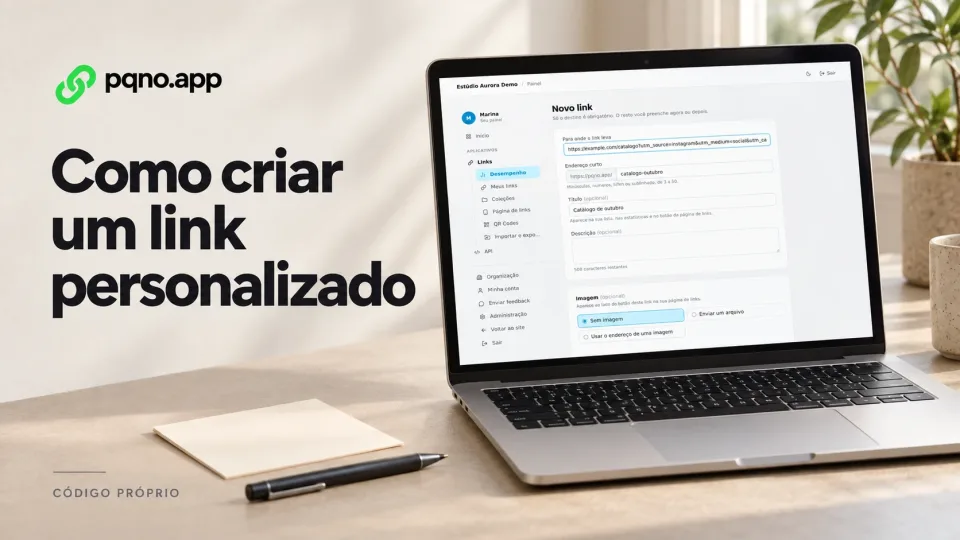
Reviewed on October 4, 2026. Illustrative cover with product screens and simulated data.